How to Install IPTV on FireStick with Kyro Player
Install from the Amazon Appstore, add your HolyIPTV playlist, start watching
This step-by-step guide shows you how to install Kyro Player on any Fire TV Stick straight from the Amazon Appstore, then add your HolyIPTV login with Xtream Codes or an M3U link. Every step has a screenshot so you can follow along on your TV.
HolyIPTV works with any IPTV player that accepts an Xtream Codes or M3U login — IPTV Smarters Pro, TiviMate, IBO Player and others. This guide uses Kyro Player for one practical reason: it is listed on the Amazon Appstore, so it installs from the FireStick's own search without the Downloader app, "unknown sources" or a long APK address to type.
Below you will find the complete process in two parts: first installing the app, then adding your HolyIPTV playlist. The same steps also work on Fire TV Cube and Fire TV edition televisions. If you already use another player, skip to Part 2 — the login details are identical in every app.
What you need before you start
A FireStick or Fire TV
Any Fire TV Stick (Lite, HD, 4K, 4K Max), Fire TV Cube or Fire TV edition television, connected to the internet and signed in to an Amazon account.
Your HolyIPTV activation email
Sent automatically after your order. It contains your Username, Password and Server URL (Xtream Codes) plus an M3U link. Check Spam / Promotions if you cannot find it.
About 5 minutes
Installing the app takes around a minute. Typing your login details with the remote takes the rest. No computer, no USB stick, no side-loading.
What you get with Kyro Player
A quick overview before you start. Prefer IPTV Smarters Pro or TiviMate? Both work with HolyIPTV on FireStick too; see the general setup guide for the side-loading steps.
Official Amazon Appstore app
Kyro Player is listed on the Amazon Appstore, so it installs like Netflix or YouTube. No Downloader app, no "unknown sources", nothing to update by hand.
Xtream Codes and M3U
Both login types that HolyIPTV provides work out of the box. Xtream Codes is the quickest to type and fills the TV guide automatically.
Live TV with a real guide
Channel logos, categories, favourites, and what is on now and next with a progress bar. Change channel with up/down while watching.
Movies and series with posters
A poster wall by category, detail pages with plot, rating, runtime and cast, seasons and episodes with watched markers.
Continue Watching
Stop a film on Tuesday, pick it up on Wednesday exactly where you left it.
Built for the Fire TV remote
Big focusable cards, fast navigation, automatic reconnect if the stream drops, audio track and subtitle selection, aspect ratio control.
Install Kyro Player on your FireStick
Three steps, all done with the remote. No Downloader app, no developer options, no APK links.
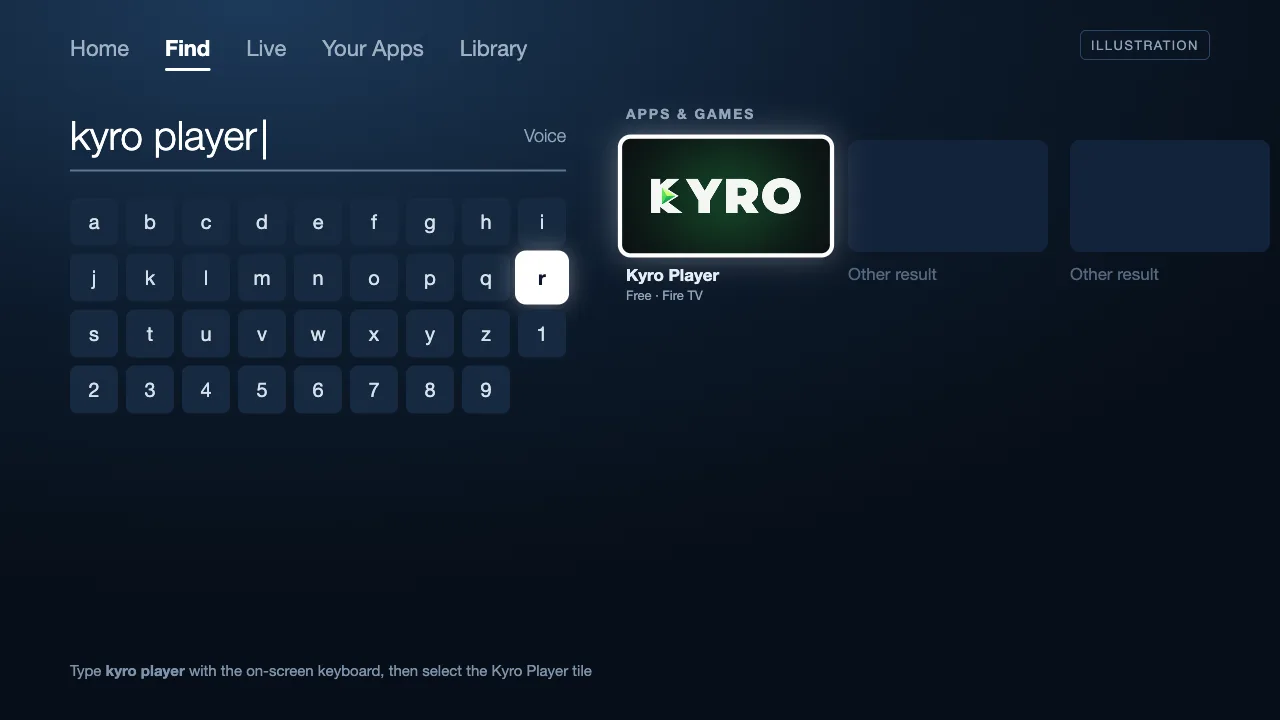
Step 1: Open Find and search for "Kyro Player"
- 1Press the Home button on your Fire TV remote.
- 2Move to Find in the top menu (the magnifying glass on older interfaces) and select Search.
- 3Type kyro player with the on-screen keyboard, or hold the microphone button and say "Kyro Player".
- 4Select the Kyro Player tile from the Apps & Games results.
Step 2: Select Get (or Download) and wait for the install
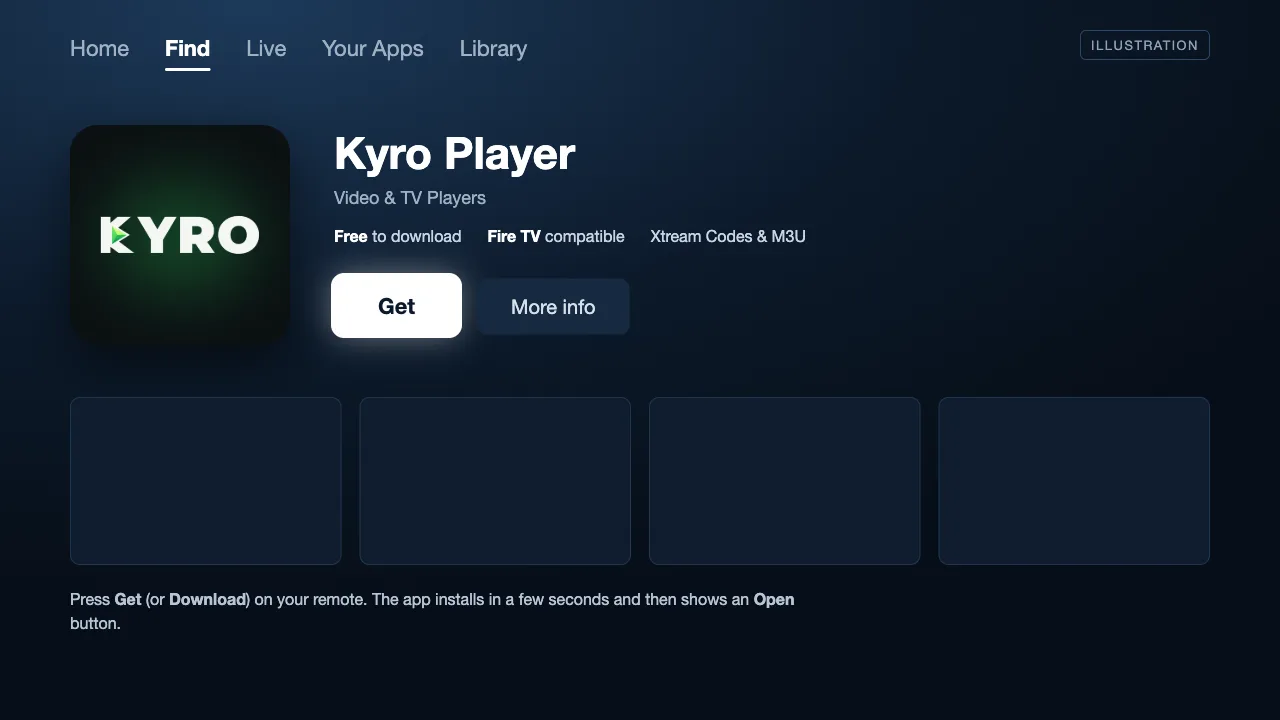
- 1On the app page, press Get / Download. The app is free to install.
- 2The install takes a few seconds. When the button changes to Open, select it.
- 3Kyro Player is now in Your Apps & Channels. Hold the Home button later to pin it to the front row.
Step 3: Accept the welcome notice
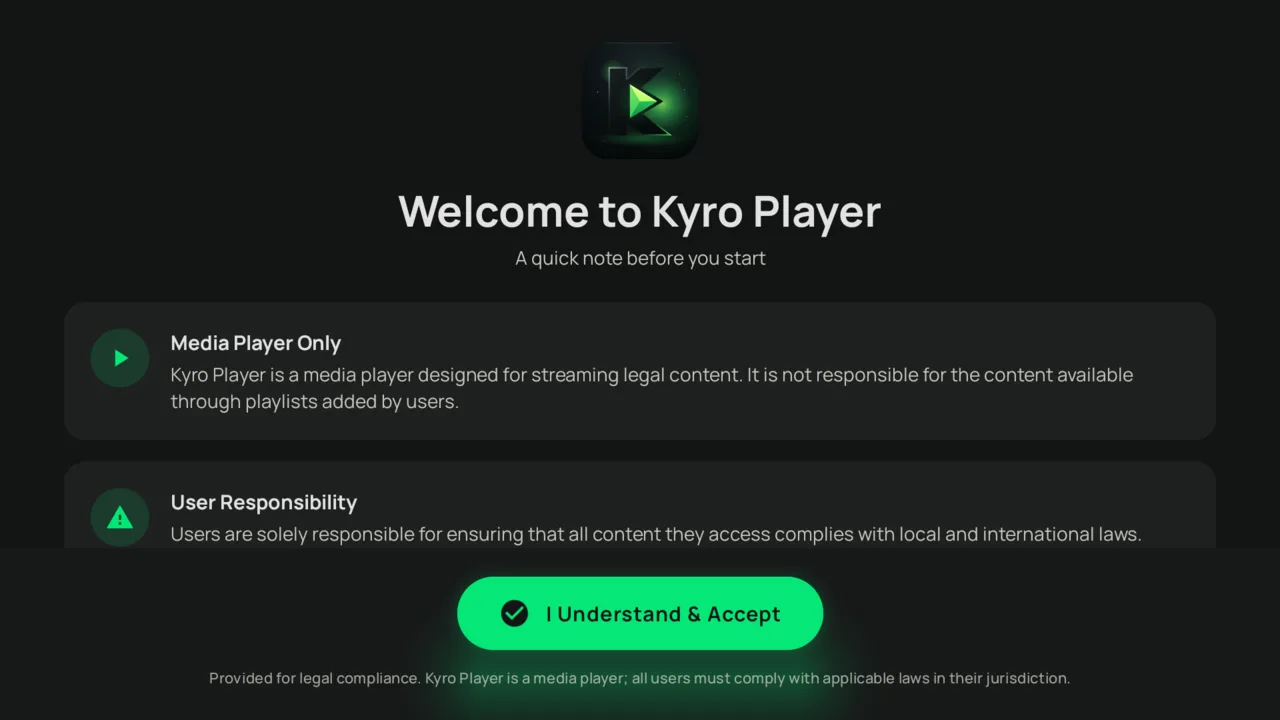
- 1The first launch shows a short notice explaining that the app is a media player and does not include any channels itself.
- 2Your channels come from your HolyIPTV subscription, which you add in the next part.
- 3Select I Understand & Accept to continue.
Prefer to install from your phone or computer?
Open the Kyro Player page on the Amazon Appstore, sign in with the same Amazon account as your FireStick, choose your Fire TV under "Deliver to" and press Get App. The app installs on the stick remotely within a minute.
Kyro Player on the Amazon AppstoreAdd your HolyIPTV playlist
Grab your activation email. You will type three things: username, password and server URL.
Where each detail goes
| In your HolyIPTV email | In Kyro Player |
|---|---|
| Username | Username |
| Password | Password |
| Server URL / DNS / Host (with port) | Server URL / DNS |
| M3U link (only for the M3U method) | M3U URL |
Never share these details publicly. They are personal to your subscription.
Step 4: Select Add Playlist on the home screen
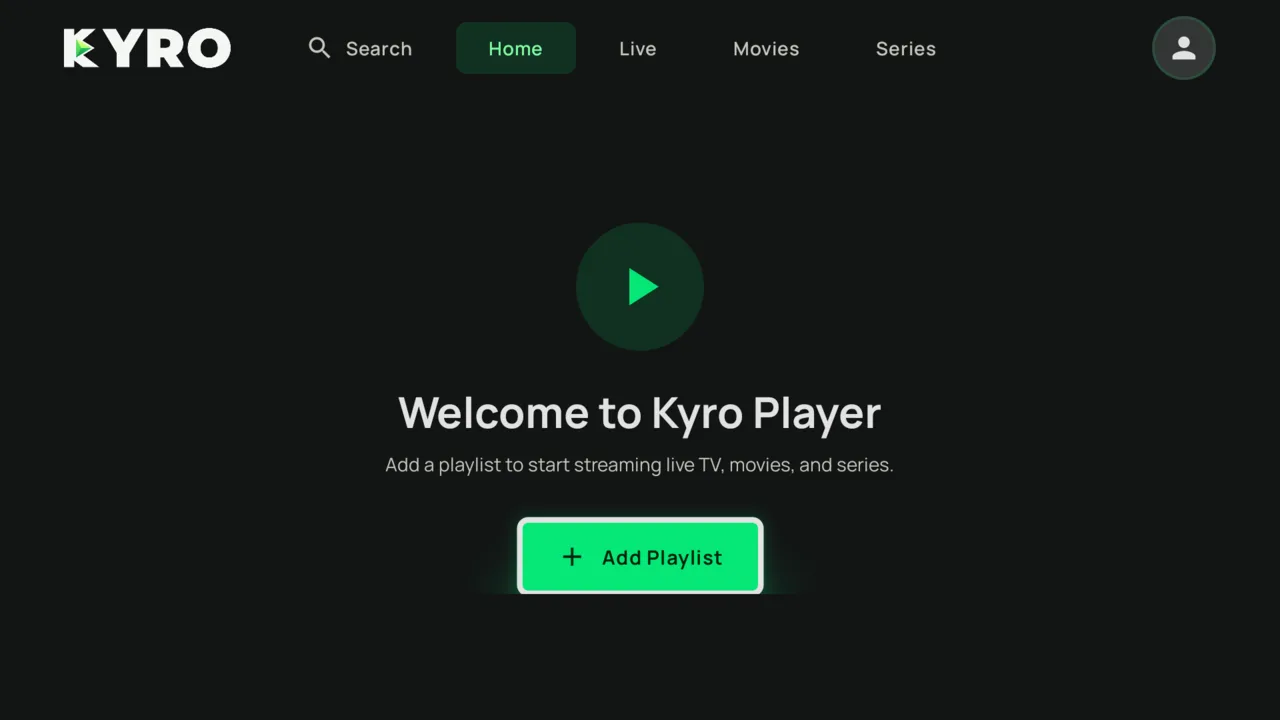
- 1After the welcome notice you land on an empty home screen with one big green button: Add Playlist.
- 2Press the OK (select) button on your remote.
Step 5: Keep Xtream Codes selected
- 1At the top of the form you can choose Xtream Codes or M3U. Xtream Codes is selected by default — keep it.
- 2It is faster to type than an M3U link and it loads the TV guide (EPG) automatically.
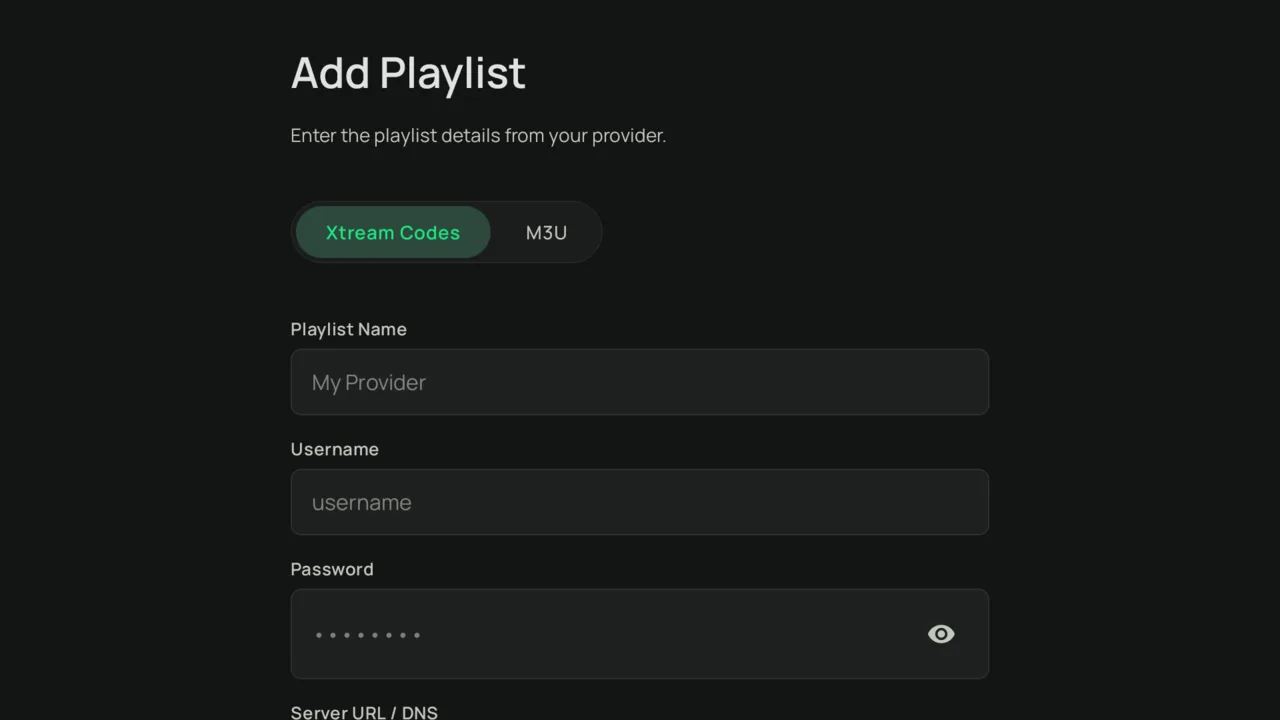
Step 6: Type the details from your HolyIPTV email
- 1Playlist Name: anything you like, for example HolyIPTV.
- 2Username: the username from your activation email.
- 3Password: the password from your activation email. Use the eye icon to check what you typed.
- 4Server URL / DNS: the full server address from the email, including http:// and the port, for example http://your-server-url:port.
- 5Tip: on the keyboard, the Next key jumps to the following field and Done jumps straight to the Add Playlist button.
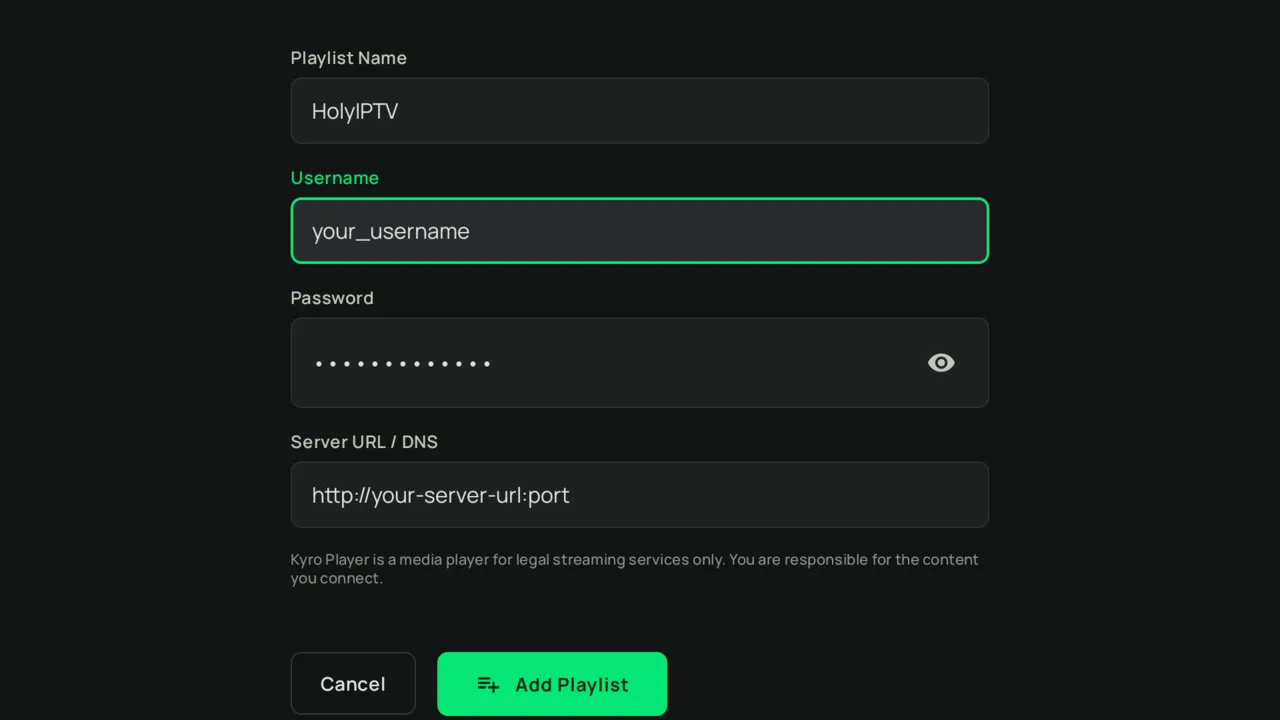
Step 7: Press Add Playlist and start watching
- 1Move down to the green Add Playlist button and press OK.
- 2The app connects to HolyIPTV and downloads your channel list, movies and series. This takes 10–30 seconds the first time.
- 3You are taken to the home screen. Use the top menu to open Live, Movies or Series.
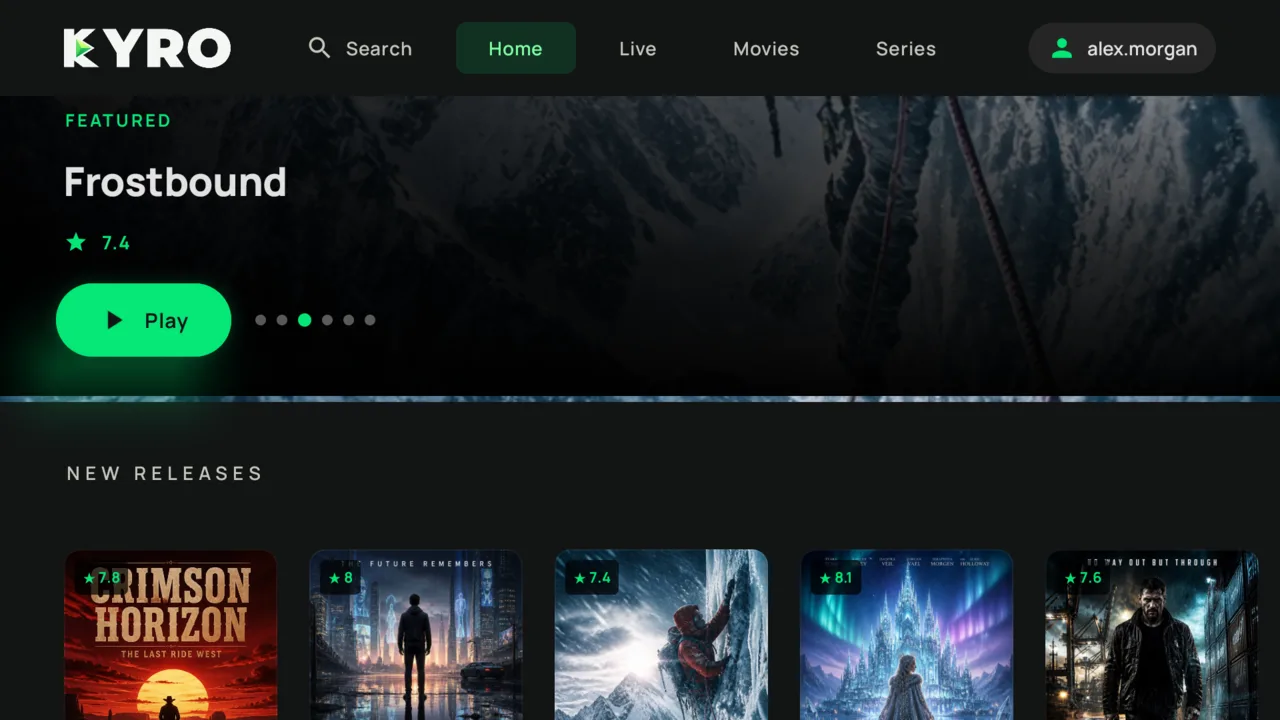
What HolyIPTV looks like in Kyro Player
A quick tour of the three screens you will use every day.
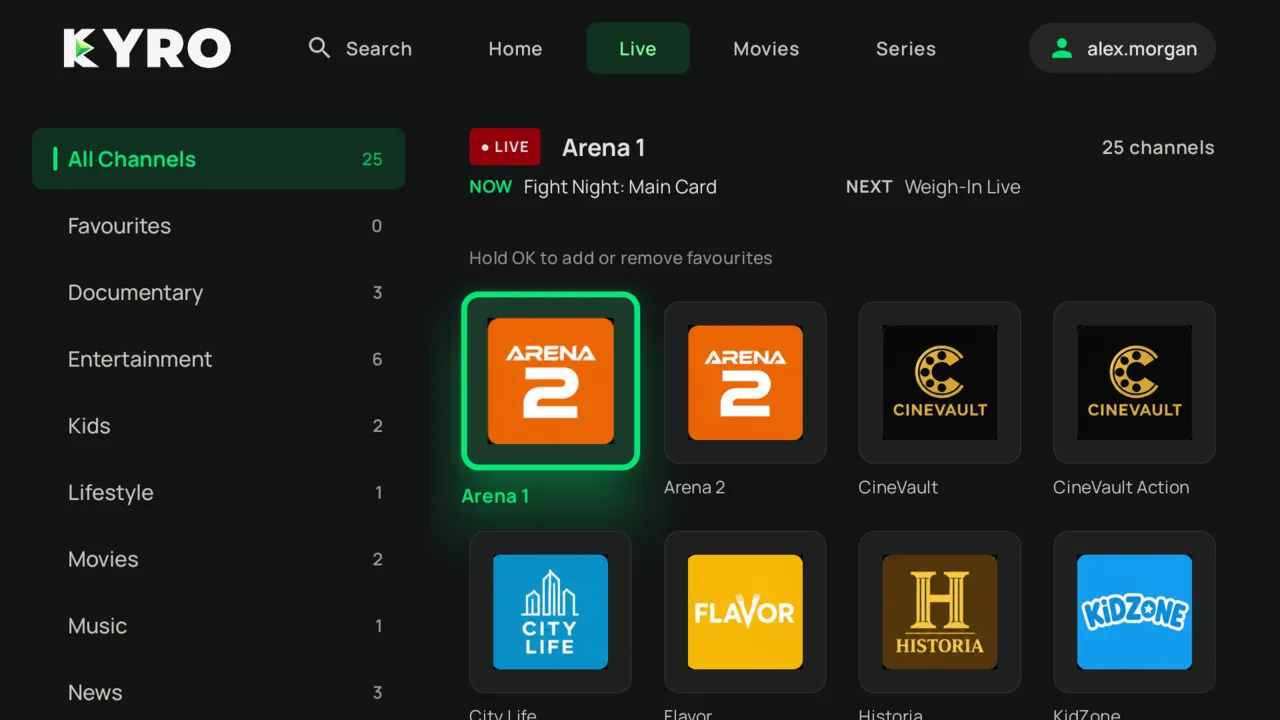
Live TV with a programme guide
Categories on the left, channel logos on the right, and what is on now and next at the top. Hold OK on any channel to add it to Favourites.
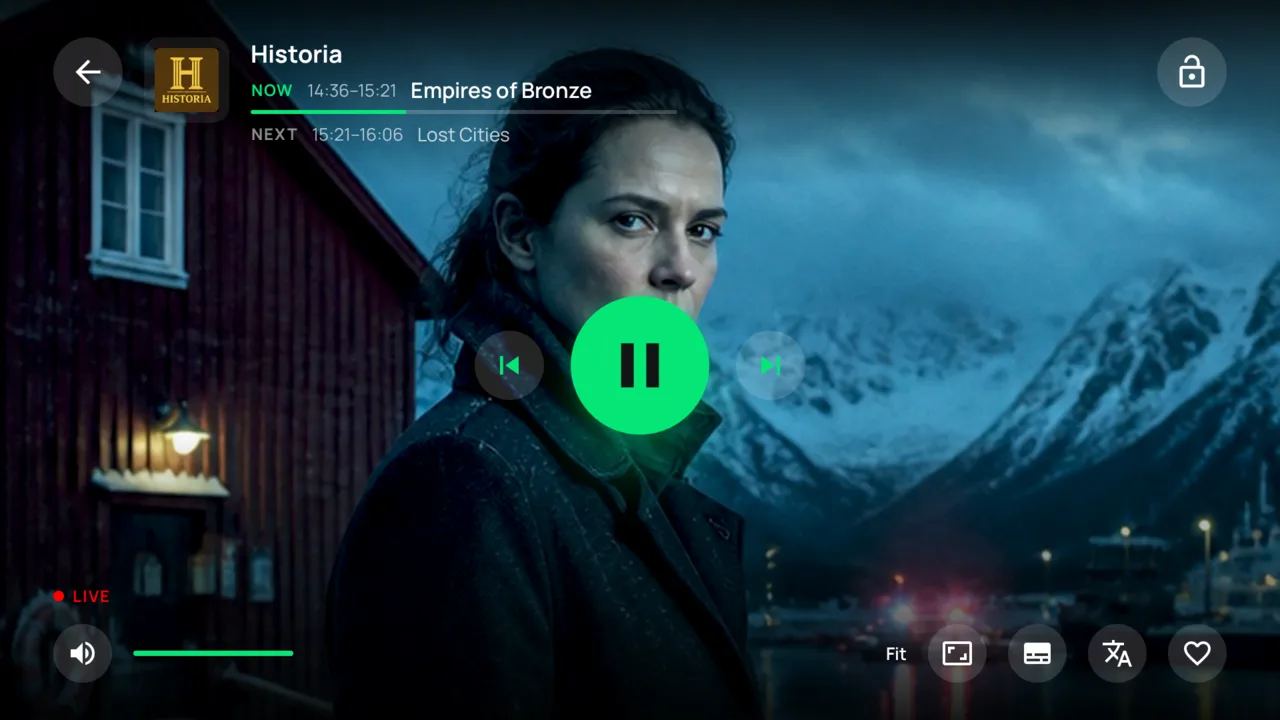
Full-screen player
Press up or down to change channel without leaving the stream. Press OK for the overlay with audio tracks, subtitles and aspect ratio.
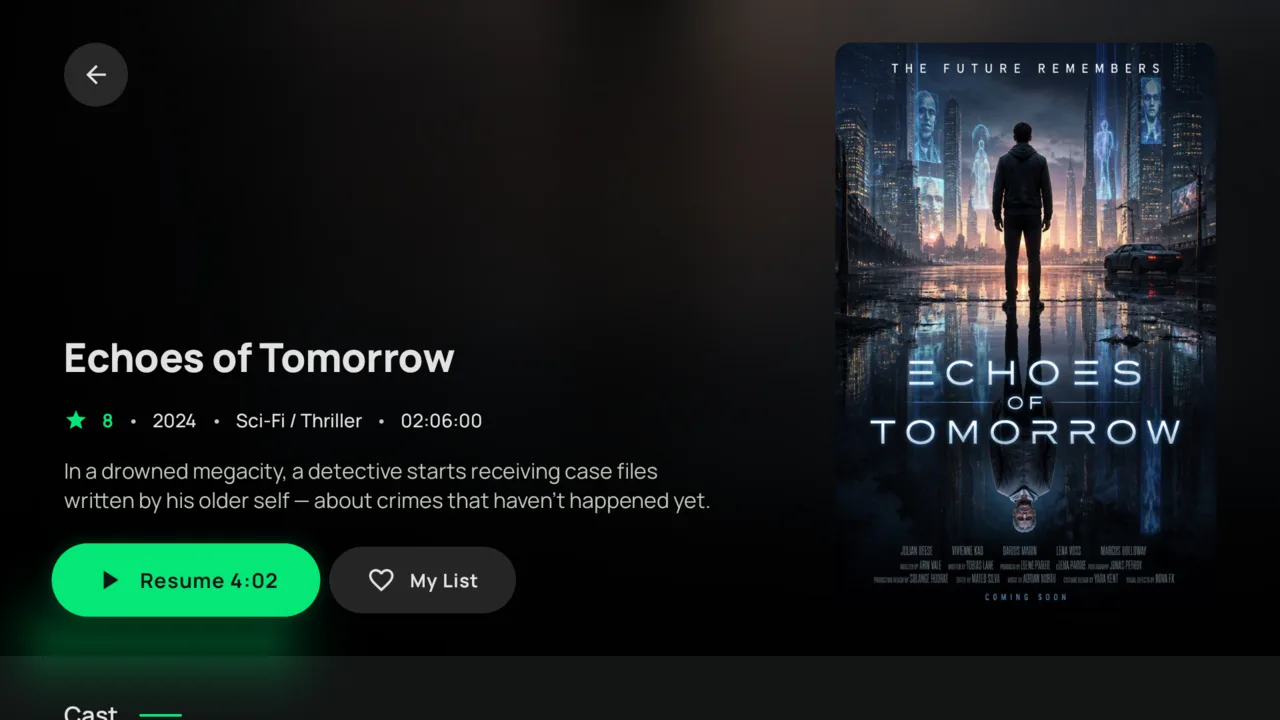
Movies and series pages
Every title has a detail page with plot, rating, runtime and cast. Series show seasons and episodes with watched and in-progress markers.
Screens show demo content. Your HolyIPTV channels, movies and series appear in the same layout.
Using HolyIPTV on other devices
Your HolyIPTV login works in any IPTV app on any device. Kyro Player, IPTV Smarters Pro and TiviMate are the ones customers use most; here is the quickest route on each platform.
Android TV, Google TV & Android phones
Open the Google Play Store and install Kyro Player, TiviMate or IPTV Smarters Pro. The setup is the same in each: add a playlist with Xtream Codes and enter your HolyIPTV details.
Kyro Player on Google PlayApple TV, iPhone & iPad
Open the App Store and install Kyro Player or Smarters Player Lite. Add your HolyIPTV playlist with Xtream Codes or the M3U link exactly as described above.
Kyro Player on the App StoreWindows PC & Mac
Kyro Player is a TV and mobile app. On a computer, open the free VLC media player, go to Media → Open Network Stream and paste the M3U link from your HolyIPTV email. For the best experience on a big screen, use a FireStick, Android TV or Apple TV.
Troubleshooting
"Could not connect" or "Invalid credentials"
Compare every character with your activation email: username and password are case-sensitive, and the Server URL must include http:// and the port (for example :8080 or :80). Delete the playlist and add it again if you are unsure.
Buffering or the stream keeps stopping
Restart the FireStick (Settings → My Fire TV → Restart), move it closer to the router or use the 5 GHz Wi-Fi network. If you use a VPN, try switching it off or picking a closer server.
The TV guide is empty
The guide fills in a few minutes after the first connection. If you added an M3U link, switch to Xtream Codes — it loads the guide automatically.
Kyro Player does not appear in search
Make sure you are signed in to your Amazon account on the FireStick and that the Appstore has internet access. Alternatively, open the Amazon Appstore link below on your phone or computer and choose your Fire TV as the delivery device — the app installs remotely.
Channels disappeared after a while
Your HolyIPTV subscription may have expired. Check your plan or renew it, then open the app again — your playlist stays saved.
Frequently asked questions
You're all set — enjoy HolyIPTV on your FireStick
Kyro Player is installed and connected to your HolyIPTV line. Open Live for channels with the guide, Movies and Series for the catalogue, and Home for Continue Watching.
Good to know
- •Kyro Player is a media player only. It does not include any channels — your HolyIPTV subscription provides the content.
- •Because the app comes from the Amazon Appstore, it updates automatically. You never need to reinstall it.
- •You can add more than one playlist (for example a backup line) and switch between them from the profile icon at the top right.
- •Store links on this page open the official Amazon, Google and Apple app stores.